


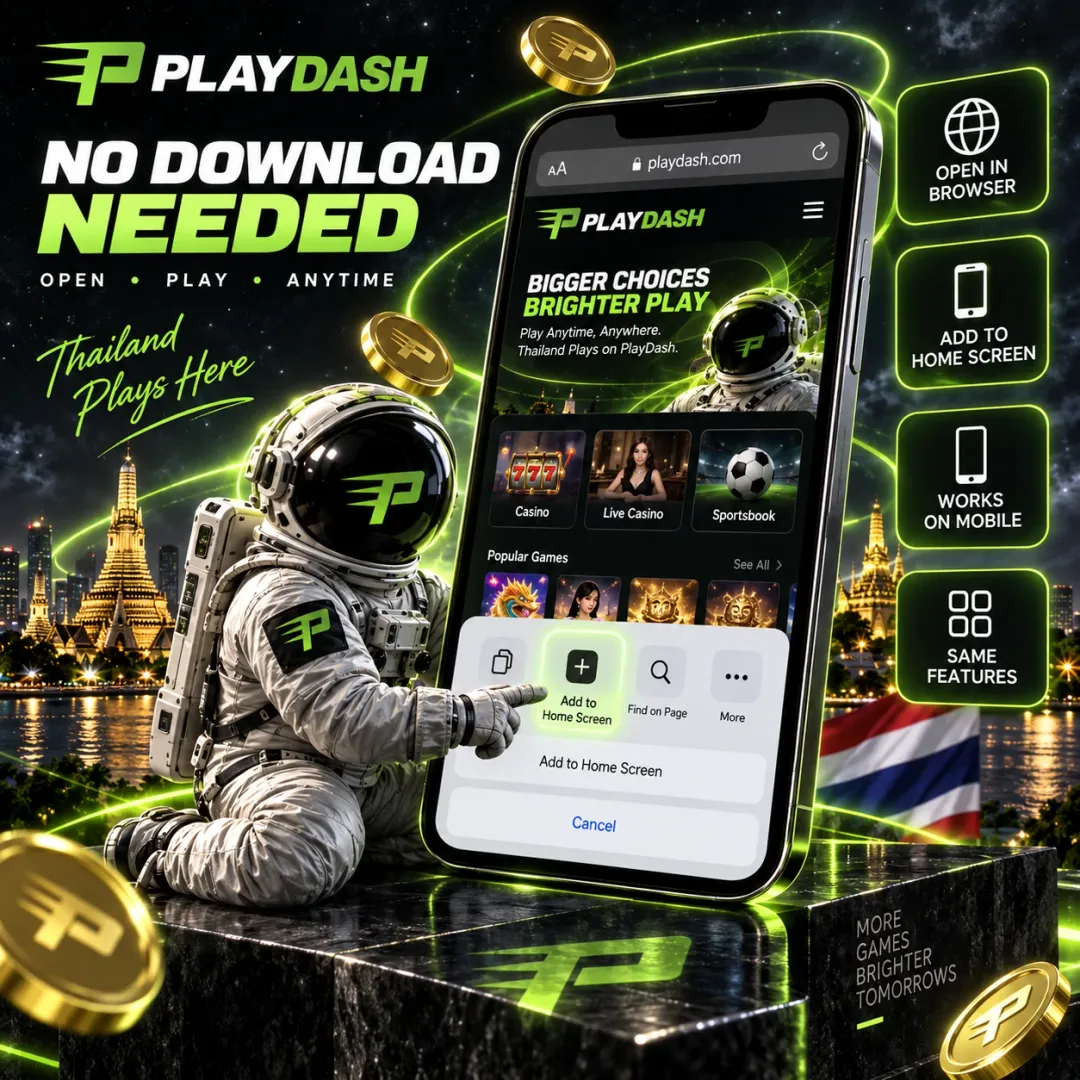
Architectural Comparison: Browser Tab vs Home-Screen PWA / WebClip vs Sideloaded APK
Core Engineering Reality: The PLAYDASH mobile experience is delivered directly through modern smartphone browser engines. No standalone native client on Google Play or the Apple App Store is confirmed in the platform specifications. Consequently, the practical choice for a player in Thailand is between opening the platform inside a normal browser tab or creating a home-screen shortcut that launches the exact same live web service in an app-like frame.
Official mobile launcher instructions and regional browser/PWA options are documented across the ecosystem's dedicated app portals at playdash.app and playdashapp.com. Reviewing those official endpoints helps ensure you never confuse a browser launcher with an unofficial downloadable file.
How Android Chrome PWA Shortcuts Work
When you trigger "Add to Home screen" or "Install app" inside Google Chrome on Android, the browser reads the site's web manifest and places a first-class launcher icon on your home grid. Tapping it opens a standalone Chromium viewport without the bulky URL bar, while sharing Chrome's 256-bit SSL/TLS security stack and cookie jar.
How iOS Safari WebClip Shortcuts Work
Apple's iOS security model blocks arbitrary binary sideloading outside the App Store, but natively supports WebClip shortcuts through Safari's Share menu. Once pinned to an iPhone or iPad home screen, the WebClip launches a clean WebKit window that separates your gaming or sportsbook session from your everyday browsing tabs.
| Technical Dimension | Android Chrome PWA | iOS Safari WebClip | Third-Party APK File (Avoid) |
|---|---|---|---|
| Phone Storage Consumption | Minimal (lightweight browser asset cache only) | Minimal (metadata bookmark and WebKit cache) | High binary footprint and persistent background services |
| Update & Patch Mechanism | Automatic server-side sync on every launch | Automatic server-side sync on every launch | Manual download and re-installation required |
| OS Permission Boundaries | Sandboxed inside Google Chrome security model | Sandboxed inside Apple WebKit security model | Requires disabling Android unknown-source protections |
| Feature Parity (Cashier, Slots, Live, Sports) | 100% full platform access under one balance | 100% full platform access under one balance | Unverified origin; high risk of phishing overlays |
Step-by-Step Installation: Pinning the PWA on Android (Google Chrome)
To create a reliable home-screen icon on any modern Android handset (Samsung Galaxy, Xiaomi, OPPO, vivo, or Pixel), always start from the main Google Chrome application rather than an embedded social-media browser.
- Open the Official Portal in Google Chrome: Verify that you are inside the full Chrome browser. If you tapped a link inside LINE or Telegram, open the top-right menu and choose "Open in Chrome" first.
- Confirm Regional Language & SSL Padlock: Check that the address bar shows a valid HTTPS connection and switch the language selector to Thai or English as preferred on the Thailand regional site.
- Open the Chrome Browser Menu: Tap the three vertical dots in the upper-right corner next to the address bar.
- Select Add to Home Screen / Install App: Tap Add to Home screen (or Install app depending on your Chrome release).
- Confirm Placement on Your Home Grid: Tap Add on the confirmation prompt. An icon labelled PLAYDASH will appear alongside your installed applications for instant one-tap launching.
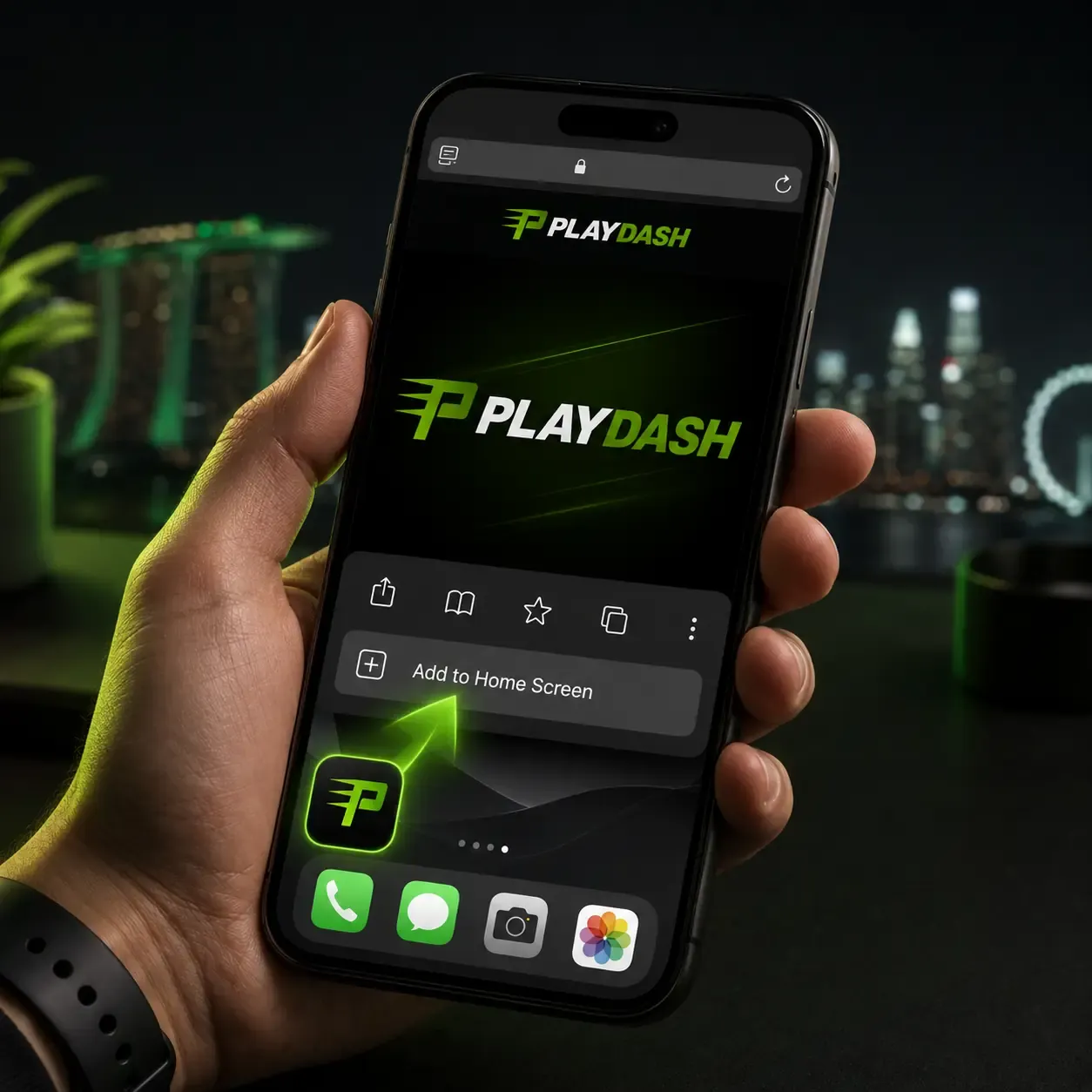
Step-by-Step Installation: Creating a WebClip Shortcut on iPhone & iPad (iOS Safari)
On Apple devices running iOS or iPadOS, home-screen WebClip generation is tightly integrated into the native Safari browser. Using Safari ensures smooth WebKit rendering for live dealer video streams and proper handoffs when switching to banking apps.
- Launch the Platform in Safari: Open the Thailand regional site inside the native Safari browser on your iPhone or iPad.
- Tap the Native Share Button: Locate the Share icon (a square with an upward-pointing arrow) centered in the bottom navigation bar on iPhone, or in the top toolbar on iPad.
- Choose Add to Home Screen: Scroll down the iOS share sheet and tap Add to Home Screen.
- Verify the Label and Tap Add: Keep the default PLAYDASH shortcut title so it is easy to recognise, then tap Add in the top-right corner of the dialog.
- Launch Directly From Your Home Screen: Tap the newly created icon on your iOS home screen to open the full-screen mobile web interface without standard browser toolbars.
iOS Session Storage Tip: Because Apple's WebKit engine can isolate cookies between standard Safari tabs and standalone home-screen WebClips, stick to launching PLAYDASH consistently from your home-screen icon once created. That prevents having to sign in separately in two different WebKit containers.
Managing Phone Hardware Permissions: Camera KYC Capture, Screenshots & Banking App Handoffs
Unlike invasive native binaries that demand blanket permissions upon installation, a browser-based PWA or WebClip requests hardware access strictly on demand when you initiate a specific account task.
- Camera Access for KYC Verification Packages: When mandatory verification is triggered (before your first withdrawal, when cumulative deposits exceed the equivalent of EUR 10,000, or during security reviews), you can photograph your government-issued ID, your selfie holding that ID, and your proof of address (bank statement or utility bill issued within the past 3 months) directly from the handset camera. Grant camera access to Chrome or Safari when prompted, and shoot on a flat, well-lit surface without glare.
- File Picker & Screenshot Uploads for Promotional Claims: Certain promotions—such as the Monday/Wednesday/Friday Scatters Challenge (up to THB 5,999 ceiling for landing 4–6 Scatters in a real-money spin on designated slots like Sugar Rush 1000)—require submitting a result screenshot via 24/7 live chat. Use your phone's hardware screenshot shortcut and select the image via the browser file picker.
- Portrait vs Landscape Viewport Orientation: Portrait mode works naturally for scrolling the 38-studio slot lobby, checking fast games like Chicken Road 2.0, or filling out cashier forms. Unlock screen rotation and turn the phone horizontally (landscape) when watching live dealer streams from the 12 live studios or comparing multi-column sportsbook odds across 12 disciplines.
- External Banking & Crypto Wallet Handoffs: Approving a local deposit or signing a USDT (TRC-20 / ERC-20) transfer takes place inside your dedicated banking or wallet application. Keep your PLAYDASH PWA or browser tab open in the background while authenticating, then switch straight back so the cashier session updates cleanly.
Troubleshooting Home-Screen Shortcuts: Clearing Stale Web Caches Safely
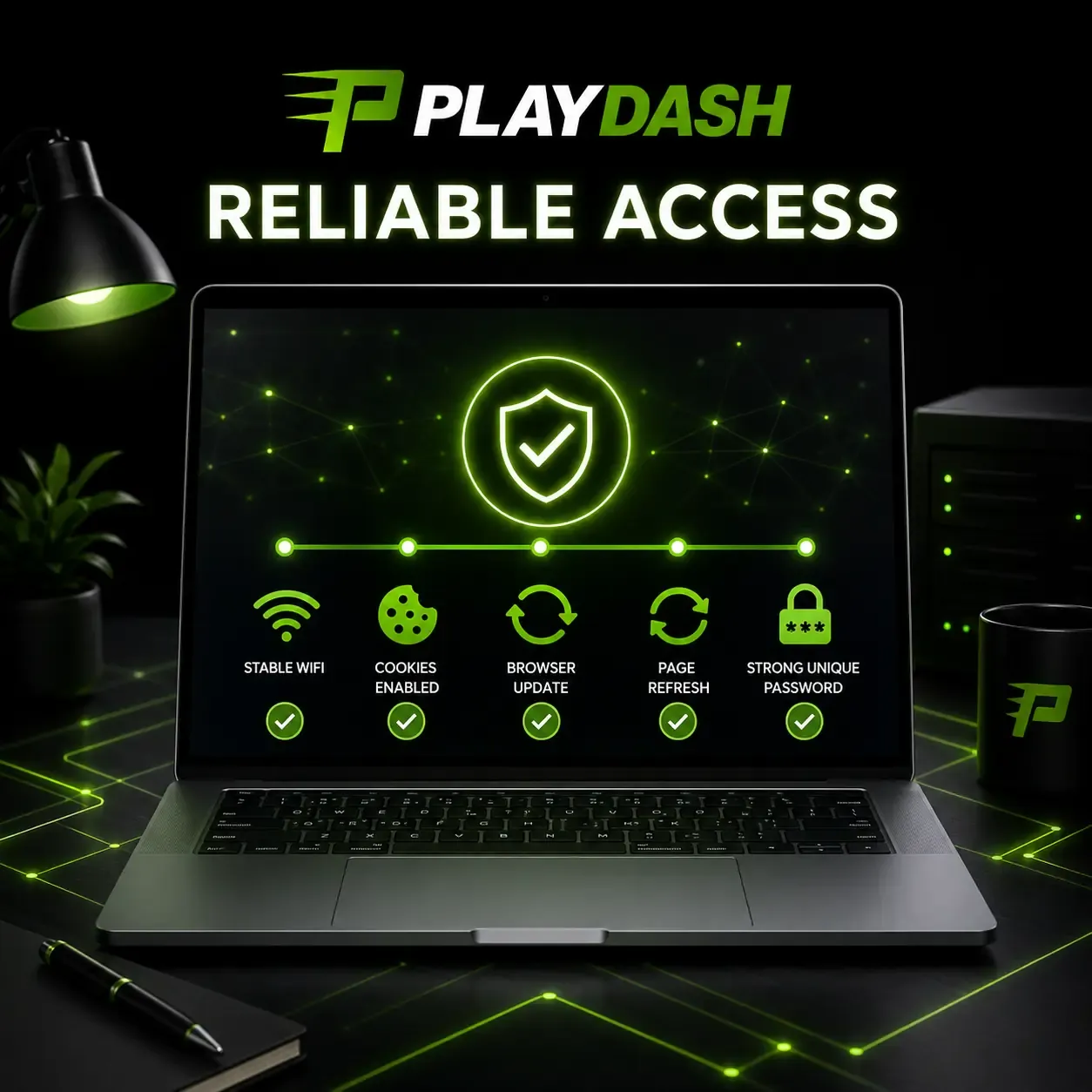
Occasionally, after the platform rolls out a new promotional banner, updates tournament tables, or refreshes game lobby assets, a phone browser may serve a cached stylesheet or stale script. Below is the diagnostic matrix for resolving launcher glitches without jeopardising your account.
| Observed Handset Symptom | Technical Layer | Safe Resolution Procedure |
|---|---|---|
| Home-screen icon opens a blank or frozen frame | Stale Asset Cache | Close the launcher window, clear site cache for the domain in Chrome/Safari settings, or delete the old shortcut icon and re-pin it from a fresh browser tab |
| Shortcut asks for login credentials on every launch | Cookie / Private Mode | Ensure Private/Incognito browsing is turned off and first-party cookies are permitted in your browser privacy settings |
| Add to Home Screen option does not appear | In-App WebView Trap | Break out of the social/chat app internal browser by selecting "Open in Chrome" or "Open in Safari" |
| Camera will not open during KYC upload | Browser Permission Block | Enable Camera access for Chrome/Safari in OS Settings, or take clear photos first with the native Camera app and upload them via the file picker |
For additional regional and technical reference points across the wider PLAYDASH network, see playdashasia.com/en, playdashcasino.com, playdash.me, playdashth.com, and playdashth.vip.
Security Verification & Device Hygiene Checklist for Home-Screen Launchers
Because a pinned Android Chrome PWA or iOS Safari WebClip retains your authenticated browser session token for convenient one-tap reopening, physical handset security and domain verification directly protect your PLAYDASH account balance. Under platform rules, every action confirmed with valid login credentials is treated as an authorised instruction by the account holder. Applying the operational checks below prevents accidental session conflicts, credential leakage, and unauthorised access.
- Verify Official Launcher Endpoints Before Pinning: Only create home-screen shortcuts from verified PLAYDASH domains or after cross-checking launcher documentation at playdash.app and playdashapp.com. Never pin a page reached through unsolicited SMS links, pop-up redirects, or third-party promotional aggregators that mask the real domain name.
- Enforce Biometric or Passcode Handset Locking: Enable Face ID, Touch ID, fingerprint unlock, or a strong device PIN on your smartphone. If a phone is left unlocked on a table with an active WebClip or PWA shortcut on the home screen, anyone picking up the device could open your logged-in lobby or cashier directly.
- Avoid Concurrent Tabs Across Browser Containers: Do not launch the standalone home-screen PWA icon while simultaneously keeping an active slot spin, live dealer table, or cashier deposit form open inside a separate normal browser tab. Running concurrent authenticated tabs on the same handset can cause session token overwrites or duplicate submission warnings.
- Protect KYC Uploads & Banking Redirects on Public Networks: Although PLAYDASH encrypts browser traffic with 256-bit SSL under its Anjouan gaming licence (ALSI-202410062-FI2), avoid uploading sensitive identity documents (government ID, selfie holding ID, or 3-month proof of address) or authorising mobile banking transfers over untrusted public Wi-Fi hotspots. Switch to your encrypted 4G or 5G cellular data connection before accessing the cashier.
- Sign Out Explicitly on Shared or Replaced Devices: Before handing a phone in for repair, trading in a handset, or borrowing a tablet, sign out inside the PLAYDASH account menu, clear browser site data for the domain, and delete the home-screen shortcut icon. Because account data resides on the central server, your balance, VIP status, and PD Coins will load intact when you sign in on your new phone.
| Verification Checkpoint | What to Inspect on Your Phone | Why It Protects Your Account |
|---|---|---|
| Domain & SSL Certificate | HTTPS padlock and exact domain spelling in Chrome or Safari before pinning | Prevents pinning a look-alike phishing mirror to your home screen |
| Single Active Container | Use either the pinned home-screen icon or the standard browser tab, not both at once | Eliminates cookie desynchronisation on iOS WebKit and Android Chromium |
| Scoped Camera & File Access | Browser site permissions set to "Ask" or "Allow only while using" | Ensures camera and photo library access occur strictly during KYC or live chat uploads |
| One-Account Compliance | Always sign in with your existing registered phone number or email after clearing cache | Respects the strict 1-player-1-account rule and preserves VIP and bonus eligibility |
Frequently Asked Questions: PWA & iOS WebClip Setup
Does the home-screen shortcut version need manual updating?
No. A home-screen shortcut opens the exact same live web version as a normal browser tab, so there is no separate application package to download or patch. Platform updates load automatically the next time you open the shortcut.
Why is the Add to Home Screen button missing when I open a link from a chat app?
In-app social webviews (such as the internal browser inside LINE or Facebook) strip out system browser installation menus. Tap the option to open the page in your system browser (Google Chrome on Android or Safari on iOS) first, then use the Add to Home Screen command.
Will deleting the home-screen icon erase my account balance or active bonuses?
No. Removing the shortcut deletes only the launcher icon on your phone screen. Your balance, open sports bets, verification records, and active promotions remain stored on your central PLAYDASH account.
Next Step After Pinning Your Mobile Shortcut
Once your home-screen icon is in place, review Mobile Session Stability to understand how 4G/5G network handoffs and server-side round settlement work, or proceed to Account & Cashier Decisions before funding your balance.